Install Cappypanda first. Basic reading is ready after installation. If you want AI, Cappypanda guides you through that setup afterward—there’s no need to install Ollama or Gemma in advance.
Find the Cappypanda setup file in your Downloads folder and open it.
Cappypanda-20261020-r1-Setup.exe
2
Follow the installation prompts
Let setup finish copying the app and its local voices.
3
Open Cappypanda
Find it in the Windows Start menu. Your little desktop companion is the place to begin.
MEET YOUR DESKTOP COMPANION
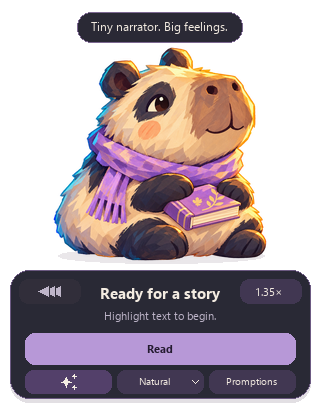
See this little face? You’re ready for your first read.
Windows shows an unfamiliar-app warning?
This release is unsigned, so Windows may show an unfamiliar-app warning. Download only from this official site or the links in your Lemon Squeezy receipt. If you are unsure about the file, contact us before opening it.
02 / YOUR FIRST LITTLE MOMENT
Highlight a thought. Let it come to you.
A SHORT PASSAGE TO TRY
A little library. A growing idea.
A seed library lets neighbors borrow seeds to grow at home. At the end of the season, gardeners can return seeds from healthy plants.
Illustration of highlighting text
Then choose Read ↗︎
1
Highlight a short paragraph
Try selectable text on a web page or in a document.
2
Choose Read on your companion
Or use the keyboard shortcut Ctrl + Shift + F9.
3
Give the voice a moment
It may take a few seconds to begin. While reading, the companion’s Read button becomes Stop—choose it whenever you want to finish.
✦
You’re ready to read. Highlight a passage whenever you want to listen.
YOUR AI-ENABLED VERSION
Put your key to use.
1
Open Your license
On your companion, choose Promptions → AI setup → Your license.
2
Activate your copy
Paste the key from your receipt or thank-you email and choose Activate.
Already says active? You’re all set.
THE EVERYDAY SETUP ENDS HERE
You’re ready to read. The rest is a little extra.
Highlight. Listen. Enjoy. You can stop here and use Cappypanda just like that.
OPTIONAL · OFFLINE AI
Want to talk an idea through?
Add explanations and Bro&Bestie conversations. Only if that sounds useful to you.
Start here after installing Cappypanda. If you haven’t installed it yet, start with the installation steps. This chapter follows the setup inside Cappypanda; you only need to do it once.
Gemma prepares explanations and dialogue. Your local voices read them aloud. After setup, this path works without internet or an AI account.
16 GB RAM suggestedSpeed depends on your computer.
About 4.6 GB to downloadGemma is downloaded once through Cappypanda’s setup.
Leave room for setupAllow 4 GB for Ollama plus 8 GB free for Gemma setup, in addition to Cappypanda. The 4.6 GB download is included in that Gemma allowance.
AI reading modes require the AI-enabled edition and activation with your purchase license key. After installing Cappypanda, open Promptions → AI setup → Your license to activate it. If it already says active, skip activation. You can prepare Ollama and Gemma before activating; activation is required before using AI reading modes. Basic reading works without activation.
A
Choose Offline AI
Open Promptions on the companion, then choose AI setup at the top right.
Select Offline AI · Gemma, then Set up Offline AI.
Follow the step Cappypanda shows you. If Ollama is ready, skip step B. If it finds a compatible Gemma model available through Ollama, skip B and C and choose “Use Offline AI” (step D)—no repeat download.
Look for
Choose Set up Offline AI to continue.
B
If prompted, add Ollama. Then return to Cappypanda.
Only follow this step if Cappypanda asks you to install or open Ollama. If it’s already installed, open it from Start and choose Check again in Cappypanda instead of reinstalling.
For a new installation, choose Get Ollama, download the Windows installer from Ollama’s official website ↗︎, and run it.
When Ollama’s welcome window appears, you can close it.
You don’t need to sign in, choose a model or start a chat in Ollama. Return to Cappypanda and choose Check again.
Close the welcome window with its ×. Leave Ollama running in the system tray; don’t choose Quit there.
Look for
Cappypanda handles the Gemma setup after Ollama is installed.
C
If prompted, add Gemma. Put the kettle on.
Only follow this step if Cappypanda offers Download Gemma. If it says You already have Offline AI, go straight to step D.
In Cappypanda, choose Download Gemma and confirm the download. Keep your internet connected while the files arrive.
Download time depends on your connection. The progress text may describe one model file at a time.
Need a break? Choose Stop download. Return to this setup panel to resume.
Look for
Nothing downloads until you choose it and confirm.
D
One last click. You’re ready.
When you see You already have Offline AI, choose Use Offline AI. Then choose Done in AI setup to return to your reading nook.
Your model stays on this computer. You won’t need to download it for every reading.
Look for
“Use Offline AI” selects the installed model for your next script.
GIVE YOUR NEW VOICES SOMETHING TO TALK ABOUT
Your first Bro&Bestie moment.
Start with a short paragraph. A little text is plenty for a first try.
Look for
Actual app window · authored sample text and dialogue.
1
Bring in your text
Highlight it and choose Promptions on the companion, or paste it into Selected text.
2
Choose Bro&Bestie
Keep Preview first on, then choose Prepare script. Wait while Gemma works.
3
Read it, then hear it
Check the Spoken script tab, then choose Read script. Bro and Bestie take turns using their selected voices.
✦
Prefer to go straight to listening?
Turn Preview first off. The button becomes Generate & read.
AI can change or misunderstand a detail. Preview the script when accuracy matters, and compare it with your original text.
Need help?
I can’t find my companion.
Open Cappypanda from the Windows Start menu. If it is already running, look in the system tray (including the hidden icons) for its menu and the option to show the companion.
Prepare script isn’t available.
Make sure you have text in Selected text and have chosen an AI mode. Check the message beside the action area. Use its setup button to go to the missing step, or open AI setup at the top right. AI reading modes need an active AI license and a compatible Gemma model available through Ollama.
Ollama is installed, but Cappypanda can’t find it.
Open Ollama from the Windows Start menu and leave it running. Back in Cappypanda’s Offline AI setup, choose Check again. Closing the welcome window is fine; quitting Ollama from the tray stops the background service.
I don’t hear anything yet.
Allow a few seconds for the voice to start. Check Windows volume and your selected output device. In the reading nook, use Voices & output to check the output and the Hear buttons to try a voice.
Does the internet need to stay on?
Download the installer while connected. Basic reading works offline after installation.
Offline AI also needs its initial Ollama and Gemma downloads. After setup, keep Ollama running; an internet connection is not needed to prepare scripts.
How long should preparation take?
It varies with your computer, passage length and whether the model is already loaded. Start with a short paragraph and allow extra time for the first request. A successful test on a second 16 GB computer took around ten seconds from generation to speech; this is one test, not a speed guarantee.
Where are my receipt and license key?
Find your purchase details in Lemon Squeezy’s My Orders. Check spam for a missing receipt, or contact us if you entered the wrong email.